Showing posts with label animation basic. Show all posts

Friday, September 23, 2011

Serial Anime Ebook #3 How to Draw Anime : Basic Drawing #1

How to draw anime :Eyes and Eyebrows

cross

eyes anime female

eyes anime female

eyes anime female

eyes anime female

eyes anime male

eyes anime male

eyes anime male

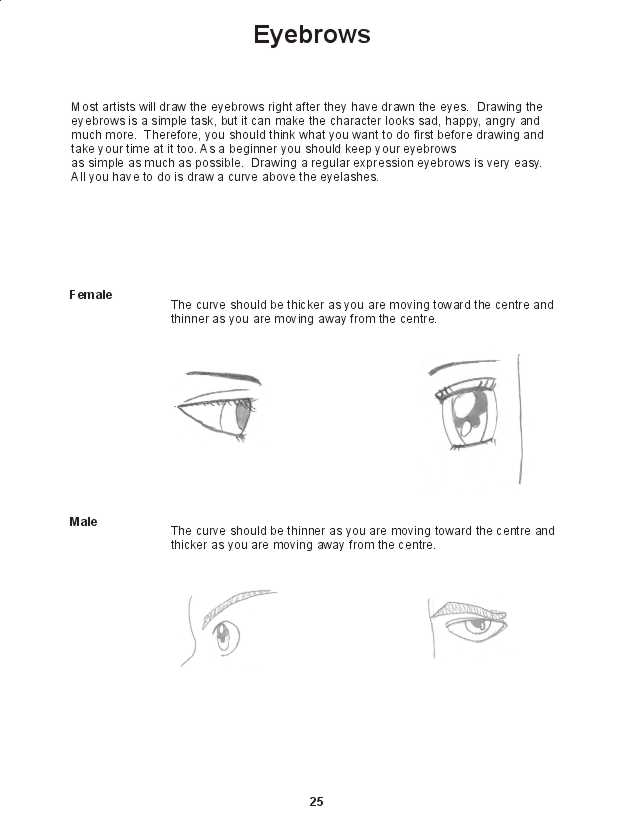
eyebrows

eyebrows

Serial Anime Ebook #2 How to Draw Anime : Basic Anatomi #2


Man Chest

How to draw anime chest, neck, and shoulder

Female Chest

Neck and Shoulder


Arm Rotation

Tuesday, September 6, 2011

Serial Anime Ebook #2 How to Draw Anime : Basic Anatomi #1

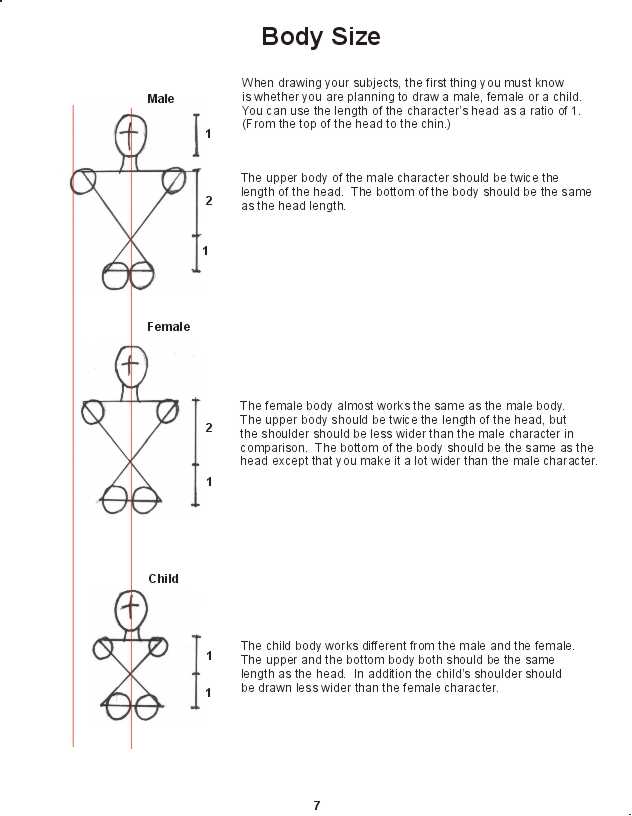
Anime Body Size

Anime Body Figure

Anime Side View

Anime Anatomy


Click to enlarge picture , right click on picture, save image as to download, enjoy ...

Monday, September 5, 2011

Basic Draw Anime in Flash


Here is a quick introduction to making Anime using Macromedia Flash. Before you begin, you must have a copy of Flash (download a free trial version at http://www.macromedia.com/software/flash/) I also highly recommend purchasing a Wacom Pen Tablet because it is much better then trying to draw with a mouse. If you are curious about why I chose Macromedia Flash to animate in, check out the section of the intro entitled: "Why Anime in Flash" 
The Basic Toolset
To do general vector drawing with Flash, first select the pencil tool (y) pencil (y). Flash has three modes for drawing vectors freehand: Straighten, Smooth, and Ink. Straighten is for drawing straight lines where Smooth is for drawing smooth curves where if you draw a line, it will "interperate" your drawing accordingly. But the most useful is Ink which just lays down your line exactly as you draw it. 
Straight and Smooth are useful for drawing background buildings or mechanical objects, where Ink is good for organics like people or animals, but if you want a really stylized look, try just using Smooth.
A very cool and helpful feature of Flash is that it recognizes the intersection of two lines when using the arrow tool (v) arrow (v). This feature is very useful for cleaning up drawings as explained below.
Because it is so easy to clean up these extra lines this way, I recommend over extending your lines as opposed to not drawing your lines far enough so that you have to go and connect them later, but thanks to the vector nature of Flash, even that is not to bad to do.
So with that in mind, practice drawing in Flash and when you are ready, move on to coloring using the Flash toolset. Was this helpful? Please let me know
Now that you have practiced drawing in Flash, you are now ready to start coloring. Just like drawing, Flash has some smart coloring tools that makes coloring anime style easy. Be sure you have read about anime style coloring in the anime aesethic section before you start coloring. 
Color Filling
To do general color filling with Flash, first select the paint bucket tool (k) paint bucket (k). Flash has four modes for color filling: Don't Close Gaps, Close Small Gaps, Close Medium Gaps, and Close Large Gaps. The idea of Gaps is where the intelligence of Flash's toolset comes into play. Basically, Flash will recognize gaps between lines (or colored areas) and stop from filling in beyond those gaps. Don't Close Gaps is the basic paint fill mode that if you have ever used a basic paint program you know and hate. It can accidently fill your whole screen with a color if you let it. Close Small Gaps really does mean "SMALL" gaps and is great for touch up or for area with fine details. Close Medium Gaps has a good threshhold for gap size and is the one I generally use. Close Large Gaps generally detacts gaps a little too large but at the same time, not enough color is more easily remedied then over colored.
The above example just shows what happens to the same image when the paint bucket tool is used once under three of the different modes. Notice how the medium and large gap recognition smartly stops the color from filling into unwanted areas like the hair, even though in a traditional paint program (or in Don't Close Gaps or Close Small Gaps modes) it would have just painted everything. Also when the gap detection stops even when you you wanted something colored like the ear, you can easily just click in the uncolored part of the ear to fill. 
Color Shading
The paint brush tool (b) paint brush (b)is a great painting tool. It is pressure sensitive when using a Wacom Pen Tablet, so the harder you press, the wider or fatter the brush size. Also, there are five paint brush modes: Paint Normal, Paint Fills, Paint Behind, Paint Selection, and Paint Inside. While each mode has it's specific use, the two modes I used most are Paint Normal and Paint Inside as described below.
The paint inside (or paint selection) mode is perfect for adding the additional shading tones to give dimension and depth to the artwork. When using both the paint bucket in Close Medium mode and the paint brush in Paint Inside mode, it is easy to add anime style color to your artwork like seen below.

So with that in mind, practice drawing and coloring in Flash and very soon I'll post a little bit on basic animation using the Flash toolset. Was this helpful? Please let me know .
 

Friday, August 13, 2010

how to draw women's breasts

The main problems people seem to have with
drawing breasts are the shape and the
placement. A lot of artists (professionals as
well as ametuers) make them look like
balloons that have been taped onto the
subject's chest; this is hardly a natural look. If
you look through figure drawing books, you'll
see that they are more like halves of a sphere
or overturned teacups rather than balloons.

Now, note the position. Imagine a central guideline that runs down the center of
your subject's body, as shown at the left. The breasts are at 45 degree angles from
that center line, and are about halfway down the chest (shown by the red diagonal
guidelines). Be very careful not to draw them too close together or too far apart, or
too high on the chest; these are commonly made mistakes. As you will see in
examples below, this basic rule of the 45 degree placement will apply to pretty
much whatever pose you are using.


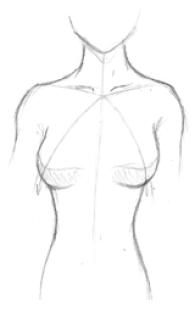
Here is another pose, showing the torso from a front view.
Note how the breasts are still located at 45 degree angles
from the center line of the body. Oh, also take note of the
shading. After looking at various examples, I find that
shading in this fashion (rather than just following the lower
curves as you would shade a sphere) makes them look
more natural.


Here is one last pose to go over the size and placement. It's
harder to see here, but the breasts are still at the 45 degree
angle from the center line (which isn't draw in this picture; sorry
about that ^_^;). Notice that the leftmost breast is drawn as a
half-sphere, not as a full sphere. If you want to exaggerate the
size, that's your choice, but I personally don't think its
necessary.